Identify Magic cards
under your cursor.
Look up cards in videos, streams, images and text, right on the page. Point at a card’s name and press your shortcut, or simply hover over supported links and double-bracket names.
 Add to Chrome — FreeGet it from the Chrome Web Store
 Edge · Coming soon
 Firefox · Coming soon
Free to useNo account neededPrivate, on-device recognitionDesktop browsers
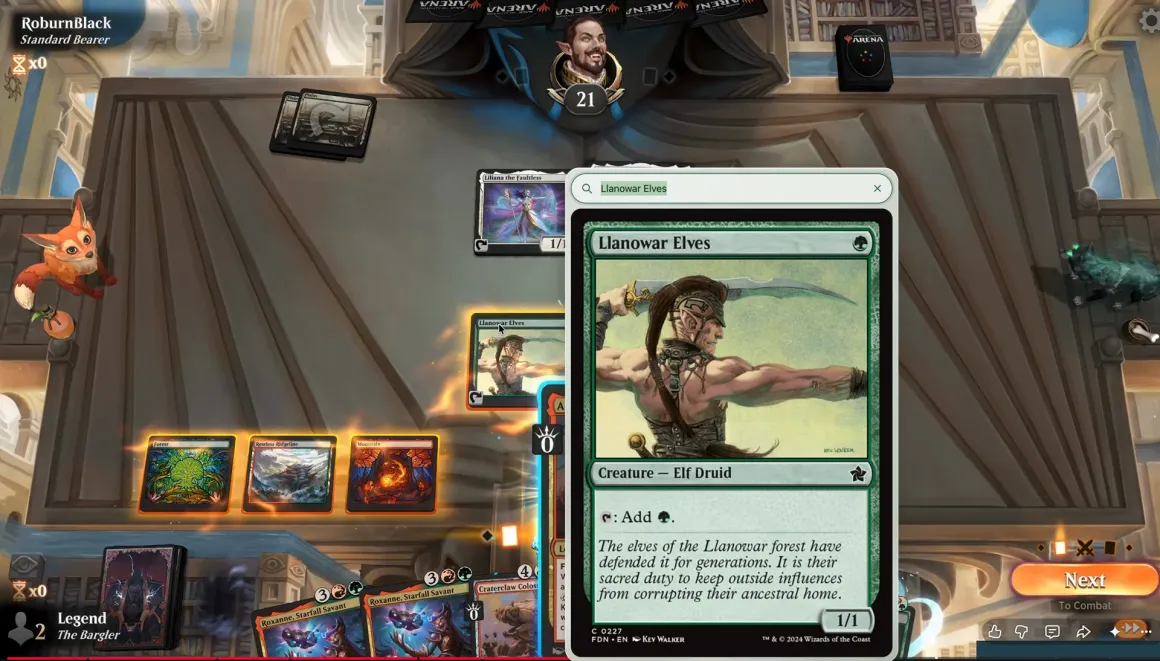
The video above is a real demonstration of CardLens in use on a YouTube video. CardLens uses image and text processing to recognize Magic: The Gathering cards under your cursor in videos, streams, images and text.
Get started with CardLens
How it works.
- 01 / ENABLE
Enable it for this site.
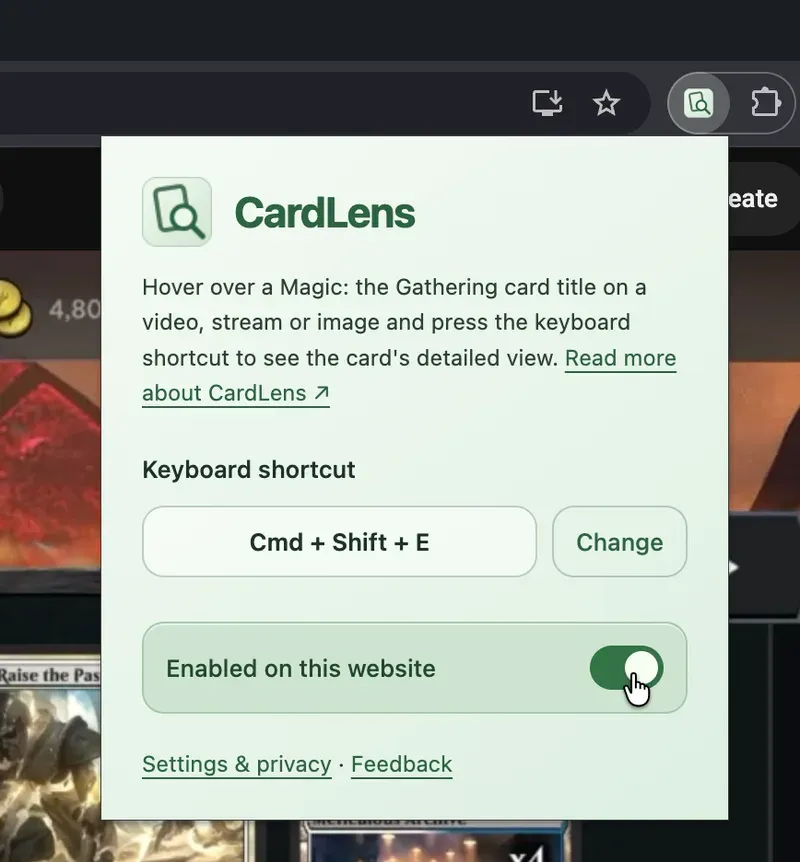
Open CardLens from your browser’s toolbar and make sure it’s enabled on the website you’re viewing.
Tested on YouTube, Twitch and selected sites. - 02 / LOOK UP
Point. Press. See the card.
Point at a card’s name in a video, image or webpage text, then press your shortcut to open the full card.
⌘ Shift E on Mac · Ctrl Shift E on Windows/Linux. Customize it in the CardLens popup. - 03 / REFINE
Missed it? Search by name.
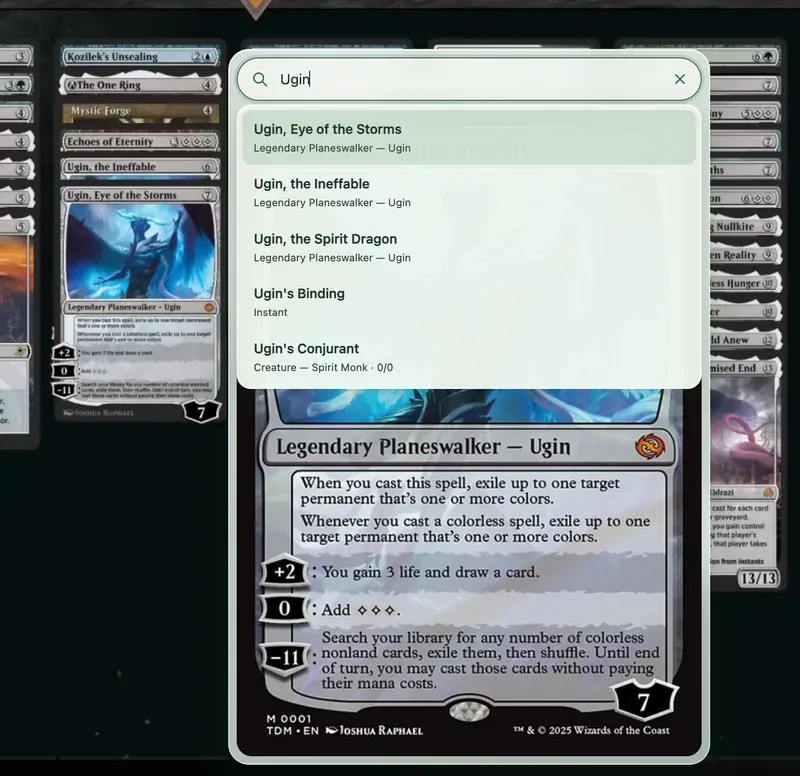
Image recognition and text processing can miss. If the result is wrong or nothing is found, type a card name in the overlay’s search field and choose a suggestion.
You can always search for a card by name.
From image to card
Spot a card.
Take a closer look.
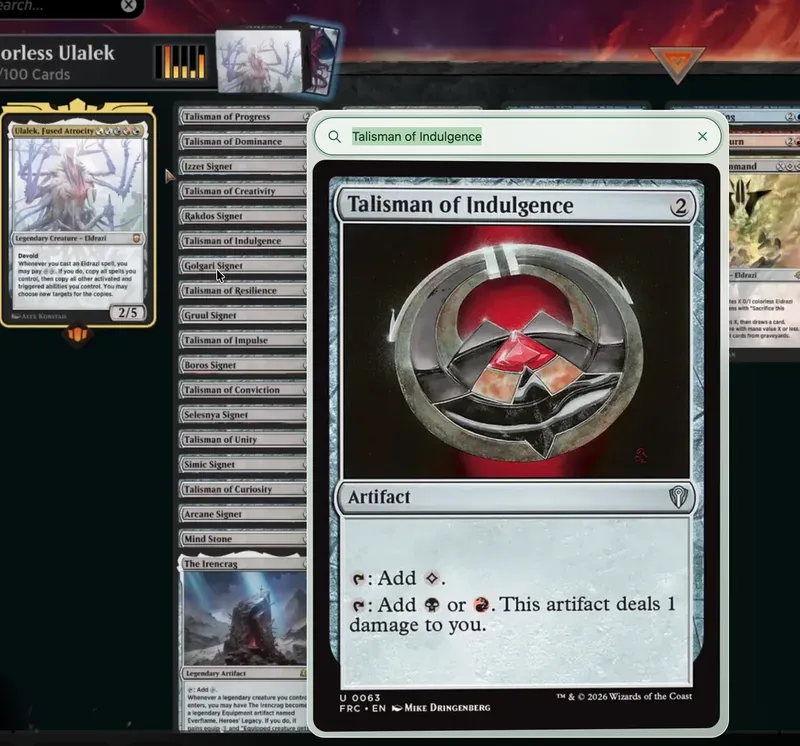
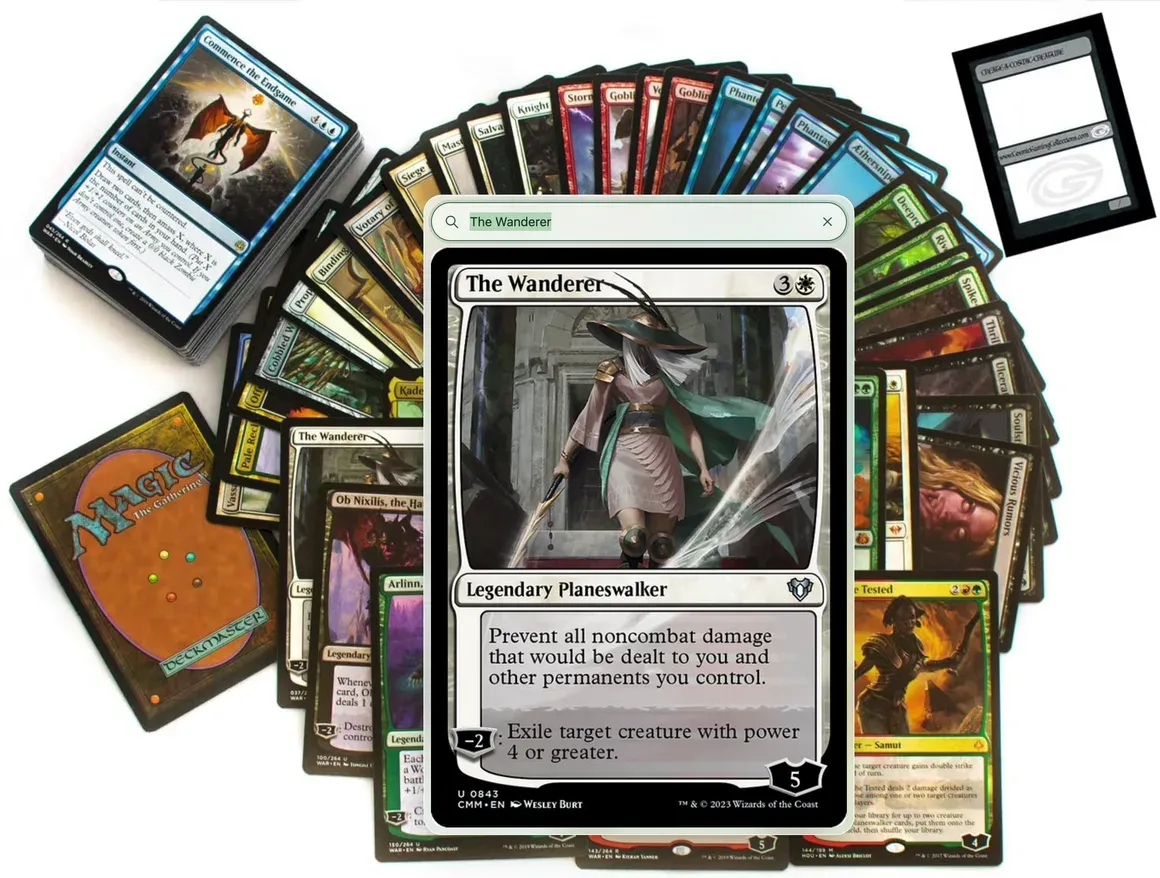
See a card in a photo or screenshot? Point at its printed name and press your shortcut to reveal the full card, right on the page.
While you read
Follow the conversation.
See the cards.
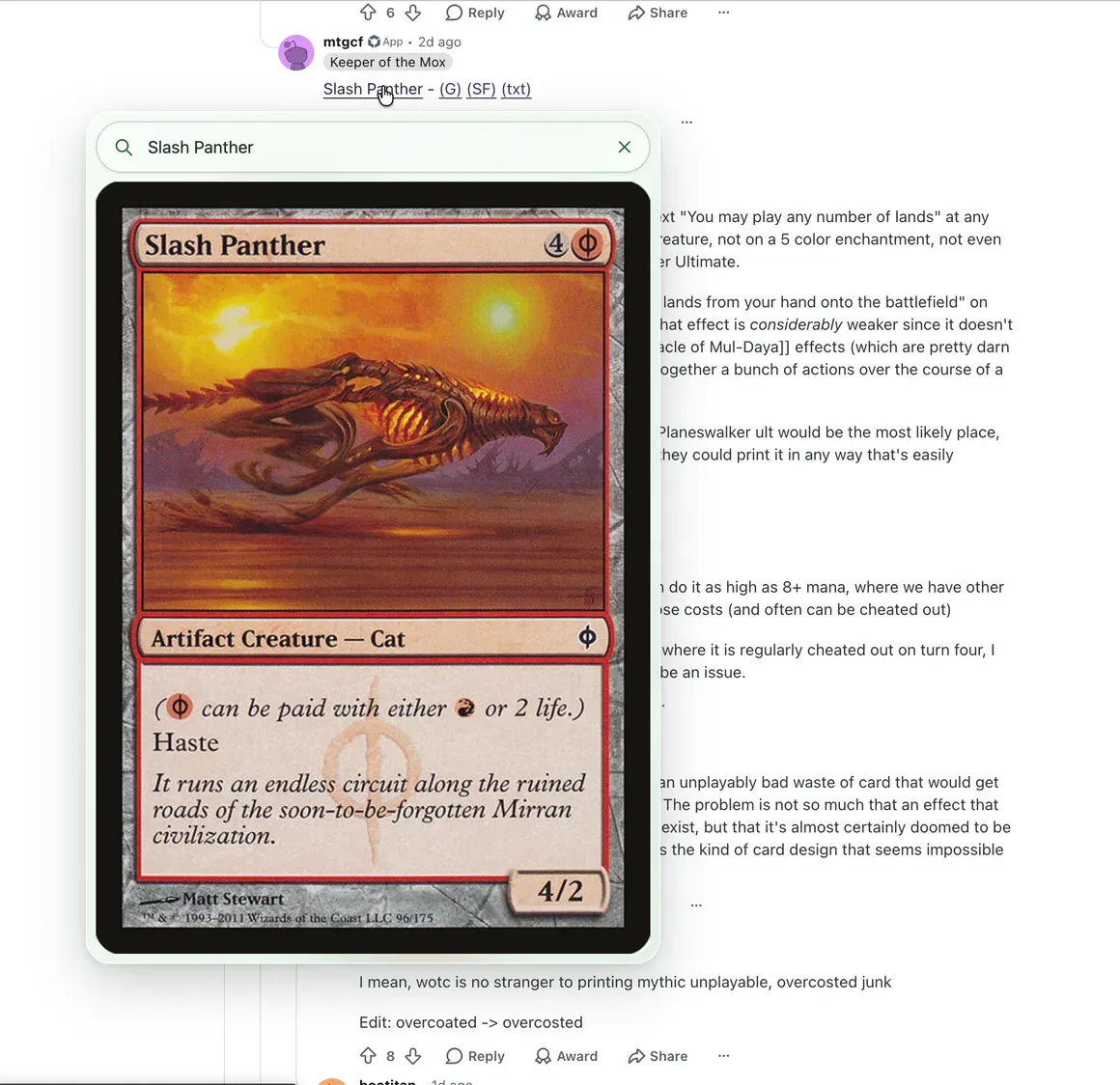
See the cards mentioned in Reddit threads, articles and other webpages without leaving what you’re reading.
- Just hover over supported references. Point at a supported card link or a name in double brackets, like [[Lightning Bolt]], to open a preview. No shortcut needed.
- Use your shortcut on any text. Point at text and press your configured shortcut. CardLens tries to find the card matching the name under your cursor.
A few useful details
Before your next lookup.
What is CardLens?
CardLens is a free desktop browser extension for identifying Magic: The Gathering cards in videos, live streams, images and text. It opens the full card image and rules text in an overlay on the page you’re already viewing.
How do I look up a card?
Point at a card’s name in a video, stream, image or webpage text and press ⌘ Shift E on Mac or Ctrl Shift E on Windows/Linux by default. You can change the shortcut in the CardLens popup. You can also select a card name before using the shortcut. CardLens opens the full card in an overlay on the page.
Does it work with YouTube, Twitch and MTG Arena?
CardLens can recognize cards shown in browser videos and streams, including MTG Arena gameplay on YouTube or Twitch, as well as web images. It runs inside your desktop browser, not the standalone MTG Arena app. Recognition is designed for readable English card names; very small, blurred, rotated or partly hidden names can be difficult. Browser-restricted pages are not supported.
Which cards can I preview just by hovering?
Hover over a name in double brackets, such as [[Lightning Bolt]], or a supported Scryfall, Gatherer or MTG Salvation card link. These references open a preview without a shortcut. Ordinary, unmarked text needs your shortcut; CardLens tries to match the card name under your cursor.
Why does CardLens need website access?
Website access lets CardLens detect the card or text under your cursor, respond to your shortcut and show previews on the page. It also enables automatic previews for supported links and double-bracket names. A screenshot is taken only when you use the shortcut over an image or video. You can disable CardLens for a site in its popup or restrict its website access in your browser’s extension settings.
How does CardLens recognize cards?
CardLens uses image and text processing in your browser to identify the card name under your cursor. For videos, streams and images, it reads the visible card name from the image. For webpage text, it looks up the name directly. The matching card appears in an overlay on the page.
What if CardLens doesn’t find the right card?
The overlay includes card-name search. Edit the name and choose a suggestion to find the card manually. You can also try pointing closer to the printed title and using the shortcut again. Click outside the overlay or use its close button when you’re done.
Can I change the shortcut or turn it off on a website?
Yes. Open the CardLens extension popup to change or reset your shortcut, or pause CardLens for the current website. Your preferences are saved in your browser.
Is CardLens private?
Recognition and card-name search happen locally. Screenshots are never uploaded. Card images and some specific card references are fetched from Scryfall. Usage data and error reporting are on by default in releases configured for analytics. To opt out, open Settings & privacy in the extension popup and turn off Share usage data and error reports. Recognition and search still work. Read the privacy policy for the full details.

A clearer view of Magic
Your next “what’s that card?”
Already handled.
Get CardLens for your desktop browser. Free, with no account required.
Add to Chrome — FreeGet it from the Chrome Web StoreEdge · Coming soonFirefox · Coming soon